A previous HashiCorp blog post explored how Vault eliminates static SSH keys by dynamically generating short-lived credentials. This shift in approach removed many of the operational burdens of traditional SSH key management, making access more secure and scalable. But issuing ephemeral credentials is only part of the equation — these credentials must integrate seamlessly into existing automation workflows.
This post builds on that foundation, showing how HashiCorp Vault and Red Hat Ansible Automation Platform (AAP) work together to simplify secure SSH access to remote hosts.
The challenge: SSH in automated pipelines
Working with various organizations, I’ve seen firsthand how AAP has become a key part of automation strategies, orchestrating everything from cloud provisioning to software deployments. Behind the scenes, it relies on SSH to connect to remote systems, leaving teams with an important challenge: How do you manage credentials securely and at scale?
Traditional SSH key management presents significant hurdles:
- Static SSH keys are a liability: If a key is leaked, it can grant unauthorized access to the hosts until the key is rotated.
- Rotating keys is a painful process: Updating and distributing SSH keys across a fleet of machines is time-consuming and error-prone.
- Enforcing access controls is complicated: Teams struggle to implement least-privilege policies without creating operational bottlenecks.
Traditional SSH key management wasn’t designed for the speed and scale of modern automation. There needs to be a better way. And there is.
Ansible credential types and Vault integration
AAP supports dynamic credential management through plugins, and HashiCorp Vault provides a dedicated SSH secrets engine that enables AAP to request short-lived SSH certificates on demand.
Behind the scenes: How Ansible retrieves short-lived certificates
In AAP, credential types define how authentication is handled when connecting to external systems. Before a playbook runs, AAP retrieves and applies the necessary credentials, ensuring Ansible has the right access to execute tasks on remote hosts.
Most AAP users today rely on the built-in machine credentials type, which uses a static private SSH key to authenticate to remote hosts during playbook execution. While this is functional, it comes with inherent risks. Private keys are long-lived, hard to rotate, and difficult to revoke if compromised.
This is where HashiCorp Vault transforms the process. The Vault SSH signed credentials plugin enables a dynamic authentication model, allowing AAP to fetch a short-lived SSH-signed certificate from Vault at the moment of playbook execution. So instead of relying on long-lived keys, each session receives a unique, time-bound credential (in Vault these are called dynamic secrets).
Overview of the solution
The goal is to automate SSH certificate retrieval and management through Ansible, using Vault to issue signed SSH certificates on demand.
- When an Ansible job runs in AAP and requires SSH access to a host, the AAP controller identifies the associated machine credential.
- If the machine credential is configured to use a Vault-signed SSH certificate, AAP initiates a request to HashiCorp Vault.
- AAP authenticates to Vault using pre-configured credentials (e.g. AppRole role ID and secret ID).
- Vault verifies AAP's identity and issues a Vault token.
- Using this token, AAP sends a request to the Vault SSH secrets engine endpoint (specifically, a configured role path) to sign a client public key. AAP generates this client key pair locally for the session.
- Vault verifies the request against the configured role and the requesting entity's policies. If authorized, Vault acts as the certificate authority (CA) and signs the provided client public key, creating a short-lived SSH certificate.
- Vault returns the signed SSH certificate (which includes validity period, allowed users, etc.) to AAP.
- AAP now has the necessary credentials for the SSH session: the locally generated private key and the Vault-signed public key certificate.
- AAP uses this key-certificate pair to establish SSH connections to target machines.
- The target machines trust the Vault-signed certificate because their SSH daemon (sshd) has been configured to recognize Vault's CA public key as a valid signer.
This dynamic process eliminates the need to store sensitive, long-lived SSH private keys for target machines directly within AAP, providing a central, policy-driven mechanism for managing SSH access.
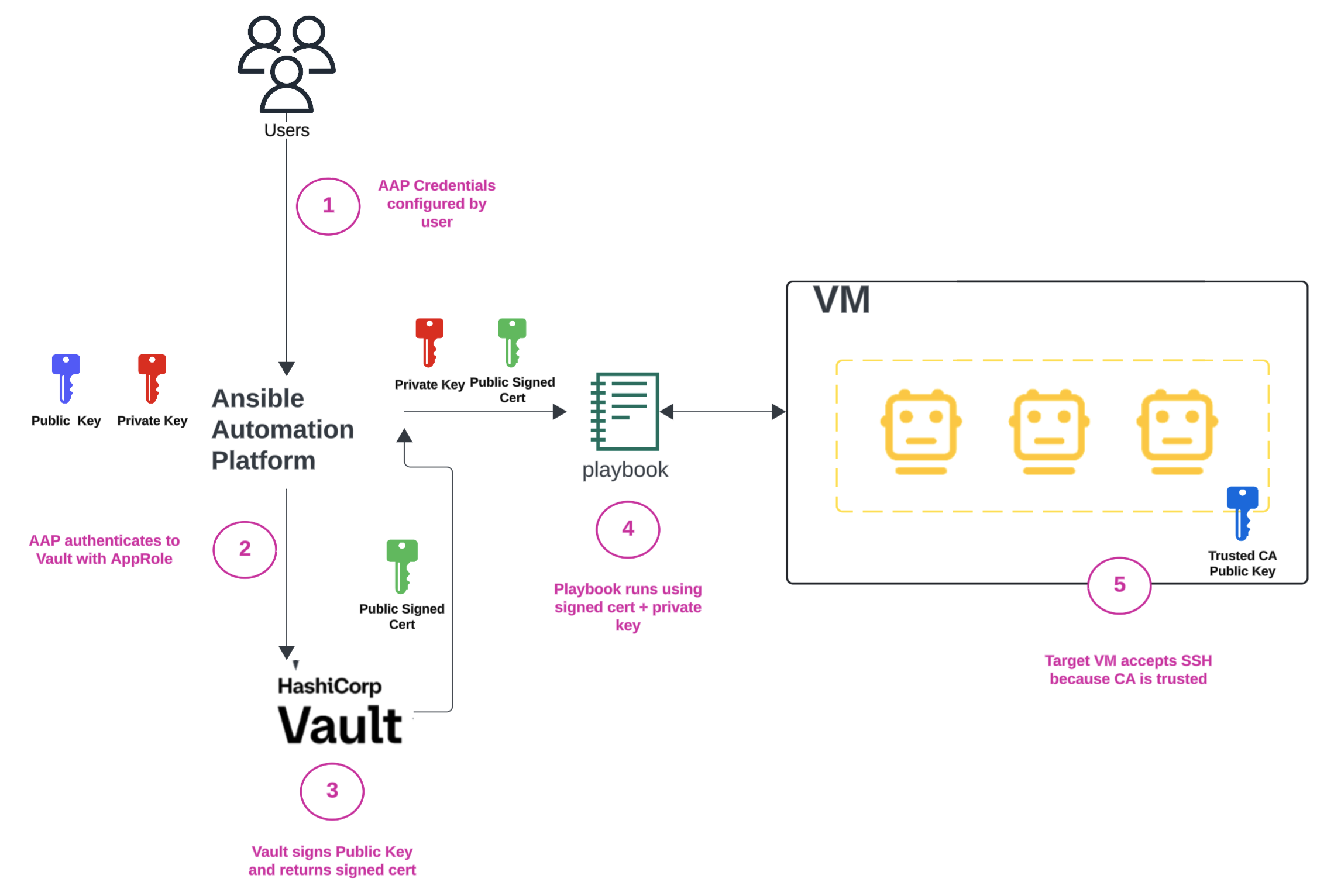
In this example, we will:
- Enable and configure the Vault SSH secrets engine to act as a CA.
- Define Vault policies and an SSH signing role.
- Set up a Vault AppRole for AAP authentication.
- Configure AAP credentials to authenticate with Vault and dynamically retrieve SSH certificates for playbook execution.
- Show how target machines trust Vault-issued SSH certificates.
Prerequisites
For the configurations below, you will need:
- HashiCorp Vault running and unsealed. For Vault installation instructions, read the Getting started with Vault guide.
- Red Hat Ansible Automation Platform
- Target machines: Remote hosts configured to trust Vault's SSH CA public key
- Note: This configuration step for the target machines is crucial but often outside the scope of this specific Ansible/Vault integration guide, though necessary for the solution to work end-to-end. It involves adding Vault's CA public key to /etc/ssh/trusted-user-ca-keys.pub or similar on the target Linux system).
Configuring Vault
First, you need to enable Vault’s SSH secrets engine, which will issue SSH certificates. Then you’ll create a Vault role and policy.
Enable the Vault SSH secrets engine
This command mounts the SSH secrets engine at the default path (ssh/):
vault secrets enable ssh
Next, configure the SSH secrets engine to allow Vault to generate certificates:
vault write ssh/config/ca generate_signing_key=true
Define Vault roles and policies
Vault uses policies to control access and roles to define how clients can request secrets — in this case, SSH certificates. Together, they determine what AAP (or any other authenticated client) is allowed to do within the SSH secrets engine.
The first step is to create a policy that grants the necessary permissions.
Create a policy
This policy defines the permissions required for AAP to interact with Vault’s SSH secrets engine.
The example below creates a policy named ssh-signer, which grants access to sign SSH public keys and read both the CA configuration and the CA’s public key. Optionally, it also allows the client to ask Vault to generate the SSH key pair.
Apply it using the following command:
vault policy write ssh-signer - from HashiCorp Blog https://ift.tt/JyUfovS
via IFTTT


No comments:
Post a Comment