In-place upgrades for Windows Server have always been a topic that divides opinions in the admin community. Some love the convenience of keeping settings, roles, features, and applications intact without rebuilding everything from scratch. Others remember painful experiences from older versions and prefer clean installs. You should also think about the size of the environment you want to upgrade. You won’t use the same approach when upgrading thousands of servers compared to smaller environments that you can possibly rebuild with clean installs.
Microsoft has made significant improvements recently, especially with the ability to perform in-place upgrades directly through Windows Update — no ISO, no DVD, no mounted media needed. This is a game-changer for many environments, particularly for Windows Server 2019 and 2022 moving to Windows Server 2025. Yes WS 2019 and WS2022 are supported for those scenarios.
In this post I’ll cover the technical details, the process, advantages, potential risks, and a specific comparison between Server Core and Desktop Experience (GUI) versions.
Why This Matters Now
Historically, in-place upgrades often required downloading or mounting installation media and running setup.exe. Starting recently, about mid-April 2026, Microsoft offers the Windows Server 2025 feature update directly via Windows Update for eligible servers (primarily 2019 and 2022). This brings the upgrade process closer to how client Windows feature updates work — seamless, managed through the OS itself. There are some manual steps to perform, however, we’ll see it in details below.
Key highlight: We are talking purely about Windows Update-driven in-place upgrades, not media-based ones. This simplifies patching and upgrading in environments, where downloading and handling large ISOs isn’t practical.
Prerequisites and Supported Paths (Windows Update Method)
- Source: Windows Server 2019 or 2022 (with the latest cumulative update installed and rebooted).
- Target: Windows Server 2025.
- Same edition (Standard to Standard, Datacenter to Datacenter) and architecture.
- Not recommended for Domain Controllers (AD DS) — while technically possible, you miss out on performance and feature improvements in the new version.
- Must Install cumulative update for Windows Server 2022: KB5078766 (2026-03 Cumulative Update) or later must be installed. A reboot may be required after installing it.
- Must install cumulative update for Windows Server 2019: KB5078752 (2026-03 Cumulative Update) or later must be installed.
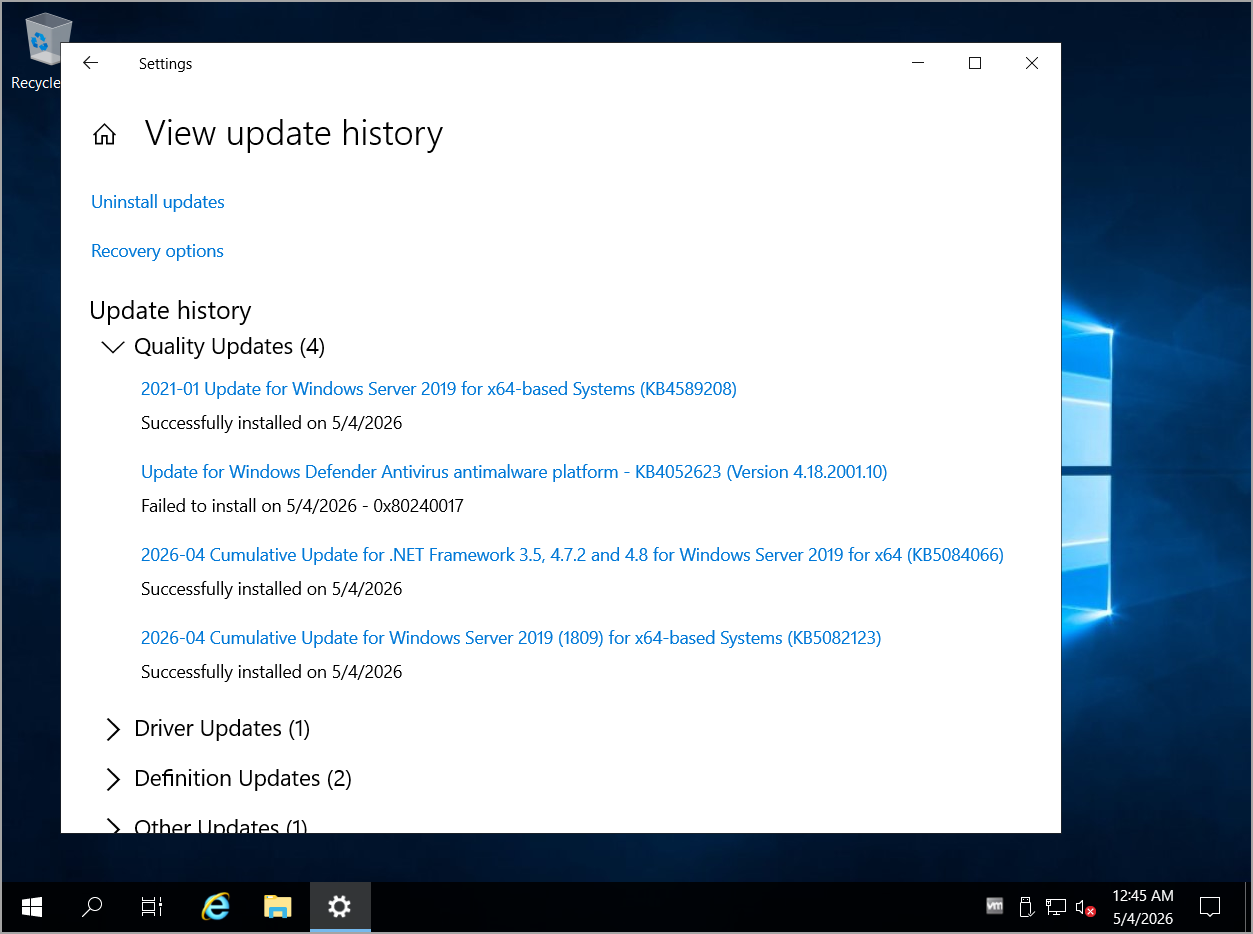
- Backup everything first (system state, data, configurations). Test in a lab or non-prod.
- For policy-controlled environments, there might be registry keys or Group Policy to opt-in to the feature update.
The process downloads the necessary files as a feature update and performs the in-place replacement of OS files while preserving your installed components.
Manual Steps for the upgrade process to start (otherwise it won’t)
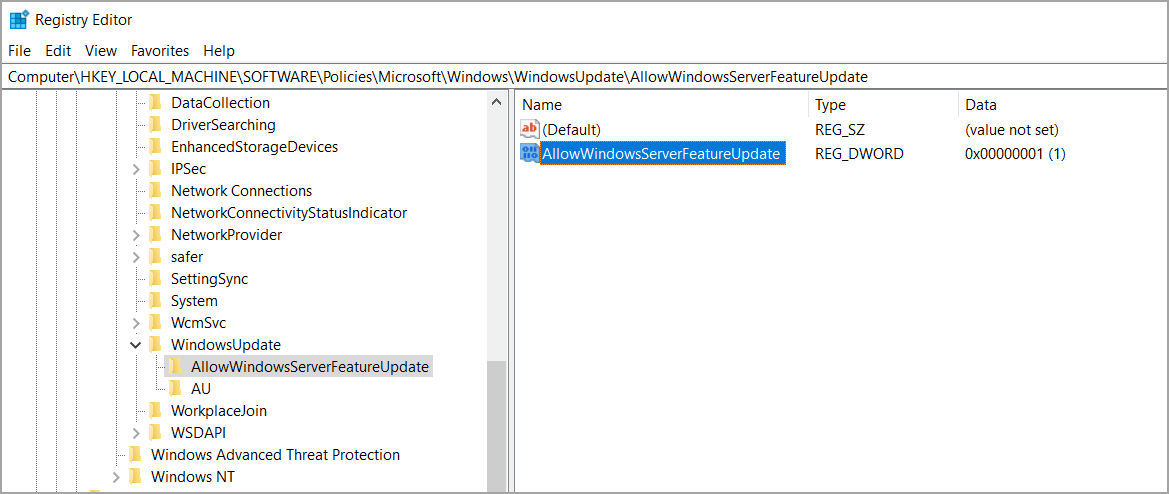
Yes, you must manually change a registry key in order for the upgrade process to trigger. If you don’t do that, the in-place upgrade will never happen. You can use PowerShell and one line of code (use elevated PowerShell prompt) to trigger the in-place upgrade.
Well, in fact, 2 commands:
New-Item -Path "HKLM:\SOFTWARE\Policies\Microsoft\Windows\WindowsUpdate\AllowWindowsServerFeatureUpdate"

New-ItemProperty -Path "HKLM:\SOFTWARE\Policies\Microsoft\Windows\WindowsUpdate\AllowWindowsServerFeatureUpdate" -Name "AllowWindowsServerFeatureUpdate" -PropertyType DWord -Value 1
Those two commands create the registry entries automatically.
You can also do it manually, by opening regedit.exe and going to
HKLM\SOFTWARE\Policies\Microsoft\Windows\WindowsUpdate\AllowWindowsServerFeatureUpdate
Create a DWORD value named AllowWindowsServerFeatureUpdate and set it to 1.
Both do the same.
The Upgrade Process: GUI (Desktop Experience) vs. Server Core
Desktop Experience (Full GUI):
- Ensure the server is fully patched via Windows Update.
- Go to Settings > Windows Update.
- The Windows Server 2025 feature update should appear (after opt-in if required).
- Download and install — it will handle the in-place upgrade.
- Reboot when prompted. The process includes compatibility checks and preserves settings/apps.
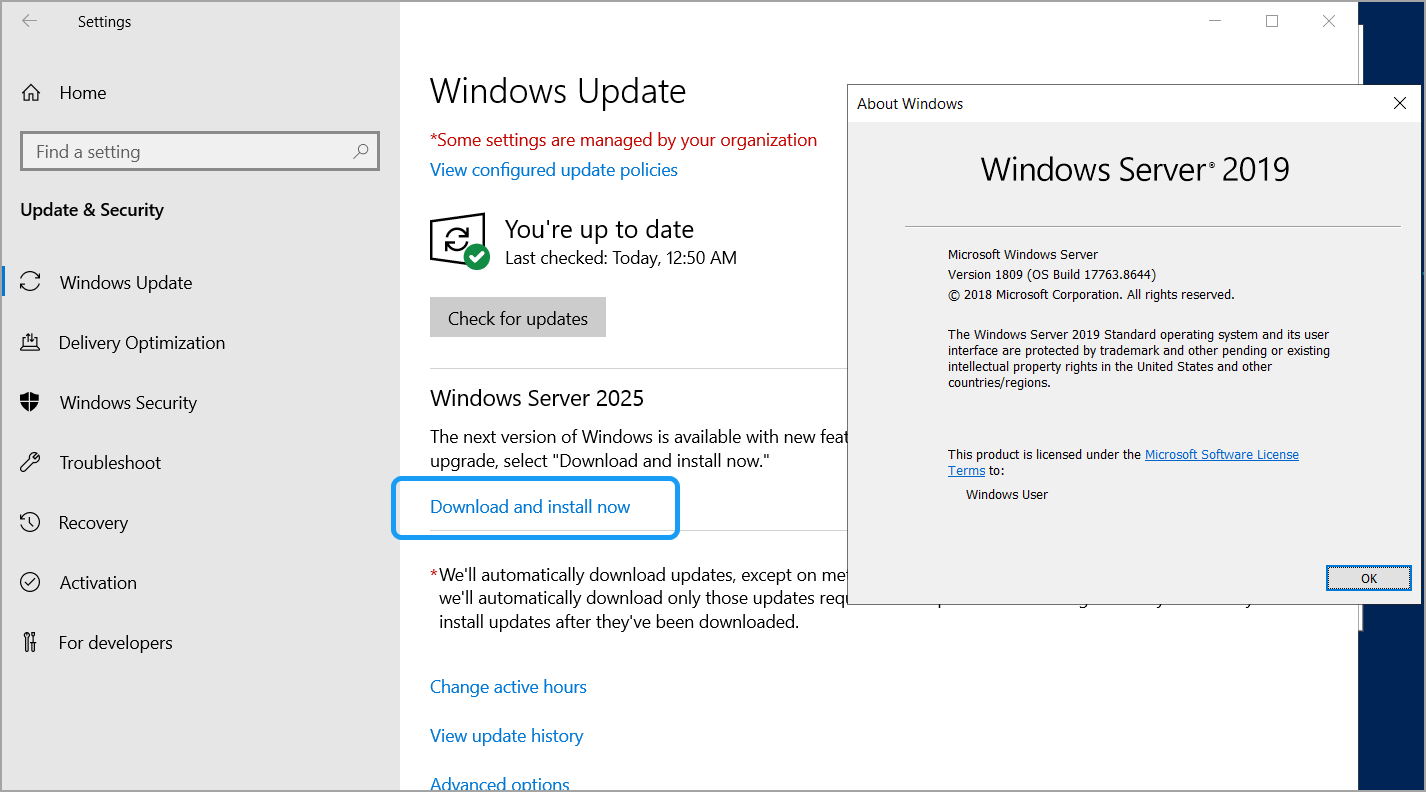
This is straightforward for admins who prefer the graphical interface. Server Manager, MMC tools, etc., remain available post-upgrade.
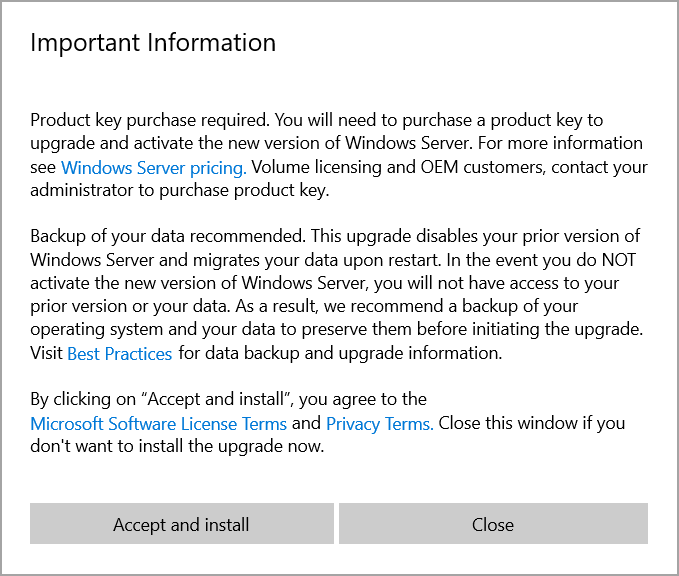
You’ll get a warning that you must purchase the product to upgrade and activate it.
Server Core: Server Core benefits equally well from this method. Use SConfig (the text-based configuration tool):
- Install the latest updates with Option 6 for Windows Update.
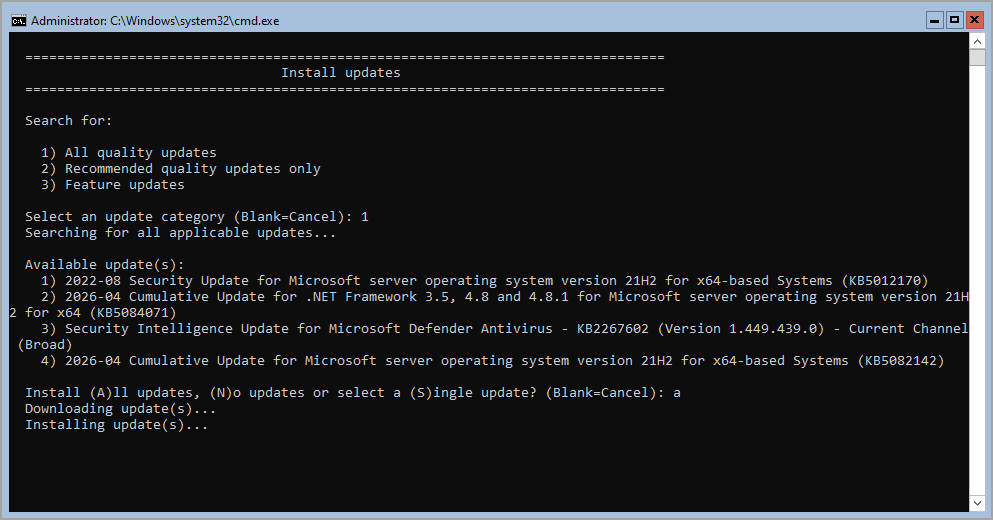
- Add Registry Key: Open an elevated PowerShell prompt and run the following command to create the necessary registry entry:
New-Item -Path "HKLM:\SOFTWARE\Policies\Microsoft\Windows\WindowsUpdate\AllowWindowsServerFeatureUpdate" -Force

New-ItemProperty -Path "HKLM:\SOFTWARE\Policies\Microsoft\Windows\WindowsUpdate\AllowWindowsServerFeatureUpdate" -Name "AllowWindowsServerFeatureUpdate" -PropertyType DWord -Value 1
- Then one level deeper with sub-option 1 (quality updates). Search for and install the feature update.
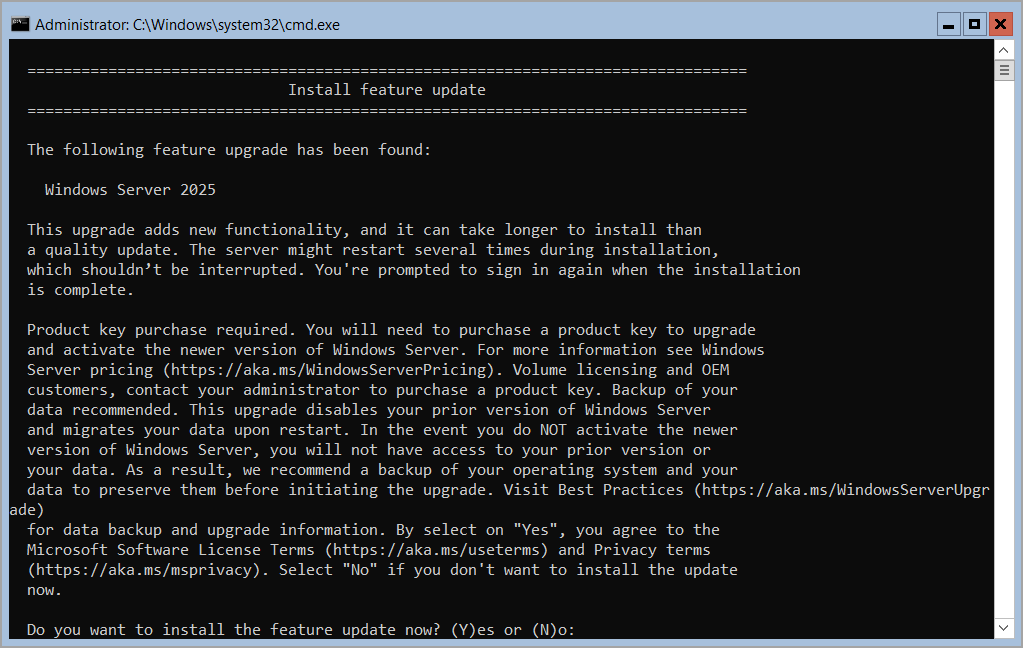
- It will trigger the same in-place upgrade process as the WS 2025 feature update will appear. Just hit “Y” to confirm for download and installation. Server will reboot automatically.
Comparison:
- Resource Usage: Core remains lighter post-upgrade (smaller footprint, fewer services). GUI version carries the full Desktop Experience overhead.
- Management: Core relies on PowerShell, SConfig, or remote tools (Windows Admin Center, RSAT). The upgrade doesn’t change this fundamental model — you stay in Core unless you reinstall.
- Upgrade Experience: Both get the update via the same servicing stack. Core upgrades are often faster and have a smaller download footprint due to fewer components. No GUI means less chance of graphical glitches during the process.
- Roles/Features: Most roles work identically. Some GUI-dependent features or legacy apps may require Desktop Experience. Core has a reduced attack surface, which is preserved.
- Rollback/Recovery: Similar for both — Windows keeps previous files for potential rollback, but always have backups.
In short, if your server is already Core, the upgrade keeps it lean and mean. If it’s GUI, it stays that way. You cannot easily convert between them post-install without a clean reinstall.
Advantages of Windows Update In-Place Upgrades
- Simplicity and Convenience: No need to handle large ISOs, mount media, or deal with USBs/DVDs — especially useful for remote or headless servers.
- Minimal Disruption: Keeps applications, server roles (File Server, DNS, Hyper-V, etc.), settings, and data intact. Less downtime than rebuild + restore.
- Faster Path to New Features/Security: Get Windows Server 2025 improvements (better security, performance, hybrid capabilities) without full migration.
- Automation-Friendly: Integrates with existing WSUS or Windows Update for Business policies. Easier for fleets of servers.
- Broader Support: N-4 upgrade paths (e.g., directly from older versions with media, but Windows Update focuses on recent ones).
- Testing and Phased Rollout: Easier to pilot on a few servers via Update management.
Overall, more advantages than risks in well-maintained environments, especially for non-critical or well-backed-up servers.
Potential Risks and Inconvenients
Even with improvements, in-place upgrades aren’t risk-free:
- Legacy Bloat: Old registry entries, drivers, or unused files might carry over, potentially causing subtle issues later.
- Compatibility: Not all third-party apps or custom configurations play nicely. Test thoroughly.
- No Full AD Benefits on DCs: As noted, upgrade DCs via other methods for best results.
- Unexpected Upgrades: Some admins reported servers offering the update automatically — manage with policies or WSUS approvals.
- Rollback Challenges: While possible (previous OS files are kept temporarily), it’s not as clean as a snapshot revert in a VM. Always have a solid backup/recovery plan.
- Downtime: Still requires reboot(s) and time for the upgrade process (can take 30-90+ minutes depending on hardware/config).
In my experience (and from feedback across the community), risks are lower than in the past due to Microsoft’s refined servicing model, but they exist. Clean install remains the “gold standard” for maximum cleanliness, especially in high-security or complex AD environments.
My Recommendation
For many production servers – particularly Server Core installations used for infrastructure roles – the Windows Update in-place upgrade is now a very viable and attractive option. It saves time and effort while delivering modern OS benefits.
Always:
- Snapshot (if VM) or full backup.
- Validate hardware/firmware/drivers compatibility.
- Test in staging.
- Monitor post-upgrade logs (Setupact.log, Setuperr.log in C:\Windows\Panther).
What are your thoughts? Have you tried the Windows Update method for Server 2025 yet?
from StarWind Blog https://ift.tt/pv6Qc7F
via IFTTT


No comments:
Post a Comment